
Silk Mobile
Table of Contents (Homepage)
- Overview
- Setting Up
- Getting Started
- How To
- Connecting Devices And Emulators
- Preparing Applications For Testing
- Managing Applications
- Recording Tests
- Working With Test Commands
- Adding Commands To Your Scripts
- Object Commands
- Click
- ClickCoordinate
- ClickIn
- ClickOffset
- Drag
- ElementGetProperty
- ElementGetTableRowsCount
- ElementListPick
- ElementListSelect
- ElementListVisible
- ElementScrollToTableRow
- ElementSendText
- ElementSetProperty
- ElementSwipe
- ElementSwipeWhileNotFound
- GetAllValues
- GetElementCount
- GetElementCountIn
- GetTextIn
- IsElementBlank
- IsElementFound
- IsFoundIn
- LongClick
- RunNativeAPICall
- SendWhileNotFound
- VerifyElementFound
- VerifyElementNotFound
- VerifyIn
- WaitForElement
- WaitForElementToVanish
- GetCoordinateColor
- DragDrop
- Application Commands
- Device Commands
- Web (Hybrid) Specific Commands
- Utilities Commands
- Monitoring Commands
- Configuration Commands
- ExtractLanguageFiles
- SetDefaultClickDownTime
- SetDefaultTimeOut
- SetDefaultWebView
- SetDragStartDelay
- SetInKeyDelay
- SetKeyToKeyDelay
- SetLanguage
- SetLanguagePropertiesFile
- SetShowImageInReport
- SetShowPassImageInReport
- SetShowReport
- SetSpeed
- SetThrowExceptionOnFail
- SetWebAutoScroll
- StartStepsGroup
- StopStepsGroup
- TextFilter
- Miscellaneous Commands
- Controlling Element Identification Rules
- Editing Test Objects
- Executing Test Scripts
- Report Of Executed Test
- Working From Code Environment
- Continuous Integration
- Layout Verification Tests
- Use Device Vitals Monitors
- Troubleshooting
- Terminology
Using The Application Manager
The Application Manager is located just under the device tab, and is used to manually instrument and manage the different applications imported into Silk Mobile.
Note: All actions performed manually from the Application Manager can also be integrated into your automation scripts by means of the equivalent utility commands.
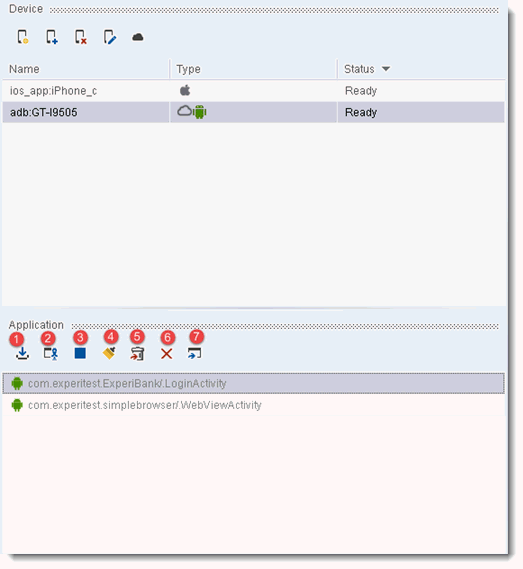
When a device is selected on the device tab, the Application Manager will display all imported applications which are compatible this device’s operating system.
Using the Command Icons and Pop-up Menu Commands
Clicking the appropriate numbered icon (above) performs the following actions:
-
Install Application. Installs the selected application on the selected device. Can be automated in scripts using the Install command.
-
Launch Application. Launches the selected application (in the instrumented mode) on the selected device. Can be automated in scripts using the Launch command.
-
Close Application. Closes the selected application on the device (if it is open). Can be automated in scripts using the ApplicationClose command.
-
Clear Application Data. Clear Application Data [Compatible only with Android devices]. Clears the data of the selected application on the device. If the application is open, activating this command will also close it. Can be automated in scripts using the ClearData command.
-
Uninstall Application. Uninstalls the selected application from the device. Can be automated in scripts using the Uninstall command.
-
Delete Application. Deletes the selected application from the Application Manager. Invoking this command will not affect the device itself.
-
Import/Sign Application. Imports an application into the Silk Mobile and instruments it. Can be automated in scripts using the Install command (with the sign parameter set to true). For more on this process, see Preparing Native Applications For Testing.
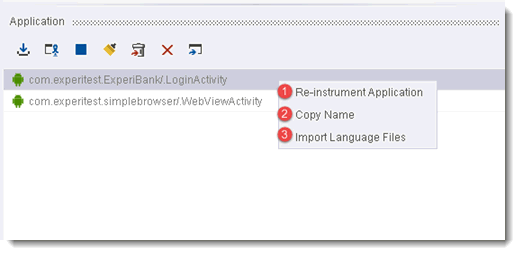
When you right-click on the name of a selected application the following commands are displayed:
-
Re-instrument Application. Updates the instrumented version of the imported application. We recommended that you perform this operation on all imported applications when upgrading the version of Silk Mobile, Doing so will ensure that each application is instrumented with its latest framework.
-
Copy Name. Copies the name of the selected application to the clipboard.
-
Import Language Files. Imports the all the various languages files packaged with the selected application. After having imported these files,you can create test set that will run on different languages versions of the application. For details on using this feature, see Using Language Properties Files.